

Protect Your Privacy Online: A Simple Guide to Staying Safer on Social Media
Note: Verizon Media is now known as Yahoo.
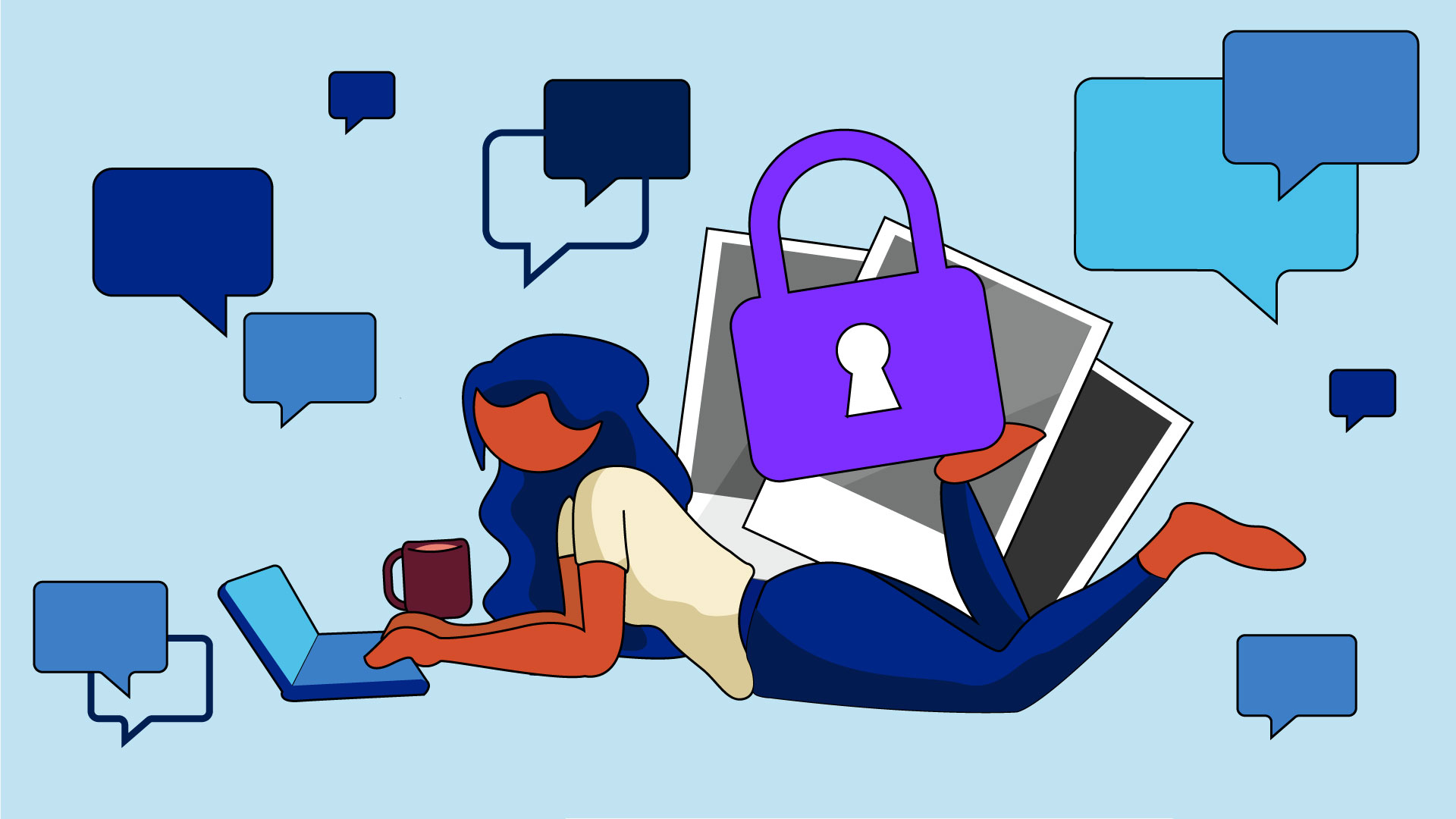


At its best, social media is a powerful tool for keeping in touch with loved ones, old friends, and sharing our hopes and dreams for our lives. We post photos of family vacations, celebrate milestones, and connect with communities that matter to us.
But there's a flip side to all this sharing that's worth thinking about.
Why Your Online Privacy Matters More Than Ever
The Rise of Doxxing
If you're unfamiliar with the term "doxxing," the New York Times describes it as "a low-level tactic with a high-impact outcome." It involves publishing information that feels intensely personal, with the intent to undermine someone’s sense of security.
This isn't just about digital embarrassment. As cancel culture continues to escalate, doxxing has become a concern for digital harassment and physical safety. When strangers can easily find your home address, phone number, workplace, or your children's school, the information you've innocently shared online can be exploited.
The Reality of Online Harassment
The information we casually share on social media can become toxic quickly if someone starts to threaten and harass us via these platforms. What seems like harmless posts about your daily routine, favorite coffee shop, or weekend plans can be a valuable tool for cybercriminals or people with bad intentions.
The good news? You don't have to delete all your accounts or stop sharing entirely. But you do need to be more intentional about who can see what you share.
Quick Privacy Settings That Make a Real Difference
Most social media platforms bury their privacy settings deep in menus, making it easy to accidentally leave your personal information visible to strangers. Let's fix that. Here are the most important privacy settings to check right now:
- Make sure your Intro/About section is set to private. This section often contains your hometown, relationship status, workplace, and education history. All of this information helps strangers build a profile of you.
- Set your friends list to private. Your connections reveal a lot about you. They can show where you work, where your kids go to school, and who your family members are. Don't make it easy for strangers to map your social network.
Venmo
Yes, Venmo. You might not think of it as social media, but by default, Venmo makes your transactions visible to everyone. This means strangers can see who you're paying, when, and sometimes even guess why based on the emoji-filled descriptions people love to add.
- Set default privacy settings to "private." This ensures that all future transactions are visible only to you and the person you're paying.
- Change past transactions to "change all to private." Yes, all those old payments are still publicly visible unless you manually change them.
- Set your friends list to "private" and toggle off "appear in other users' friends lists." This prevents people from using your Venmo connections to figure out your social circle.
- Set your profile to "private account" OR separate your personal from your professional accounts. If you use Instagram for business or professional networking, consider maintaining two accounts: one public for professional content and one private for personal posts.
- Make sure Threads is set to private. Instagram privacy settings don't automatically carry over to Threads, so you need to check this separately.
LinkedIn is designed for professional networking, but that doesn't mean you should let your guard down.
- Update your location to be less granular. Instead of listing "Brooklyn, New York," just say "United States" or "New York City area." You don't need to tell strangers exactly where you live.
- Make sure personal information isn't listed in your Contact Info. Your email address, phone number, and birthday don't need to be public on a professional networking site.
- Remove your high school. This might seem odd, but here's why it matters: "What was your high school mascot?" is a common security question answer. By listing your high school publicly, you're making it easier for someone to guess the answer and access your other accounts.
Your Personal Privacy Toolkit
Throw a Privacy Party
If navigating privacy settings across multiple platforms sounds intimidating (because it is), Block Party's browser extension can help. Social media platforms often use "dark patterns," design choices that make it intentionally difficult to find and change privacy settings. Block Party cuts through that confusion.
Once you create a username and log in, Block Party offers automated playbooks for social media accounts, including Facebook, Twitter, LinkedIn, Instagram, and Venmo to help reduce the risk of online harassment and abuse.
Just add the extension to Chrome or Firefox, and it will automatically scan your privacy settings. The extension lets you make your personal profiles visible only to friends and family with just a few clicks, instead of hunting through dozens of menus.
Remove Your Personal Information from Search Results
Try this: Google your name along with the words "address," "phone number," or "email address." Make sure to add quotation marks around these terms, like this: [Your Name] "phone number."
You'll likely see many people-search sites selling your personal and work information to anyone willing to pay a small fee. It's unsettling, but you can fight back.
Use Google's "Results About You" tool to remove websites containing your home address, phone number, or other personal information from search results. This won't remove the information from the original websites, but it will make it much harder for people to find by searching your name. You can learn more about how this works from Google's Support Team here.
Similarly, you can "Report a Concern" for Bing Search to request the removal of personal information from their search results.
You'll need to repeat this process periodically, as new sites pop up and old information resurfaces. You might want to set a calendar reminder to check every few months.
Beyond Privacy: Secure Your Accounts Too
Adjusting privacy settings controls who can see your information, but you also need strong security settings to prevent unauthorized access to your accounts. Make sure you've enabled two-step verification (2SV), use strong, unique passwords (ideally with a password manager), and regularly review which devices and apps have access to your accounts. For an easy-to-use guide on protecting your online accounts from being compromised, check out our post on How to Secure Your Account.
You Don't Have to Choose Between Connection and Safety
Taking control of your online privacy doesn't mean you have to give up the benefits of social media. You can still share the moments that matter, stay connected with the people you care about, and participate in online communities. You just need to be more intentional about it. Think of privacy settings like the fence around your backyard. You can still have friends over for barbecues and let your kids play outside. You're just making sure that random strangers can't wander in uninvited. Small steps add up to significant protection. Your future self (and your family) will thank you for taking the time to lock down your digital presence. It's not about being paranoid. It's about being smart in a world where our digital and physical lives are increasingly intertwined.
.jpg)

