

Secure Your Accounts: A Guide to Security Best Practices
Note: Verizon Media is now known as Yahoo.
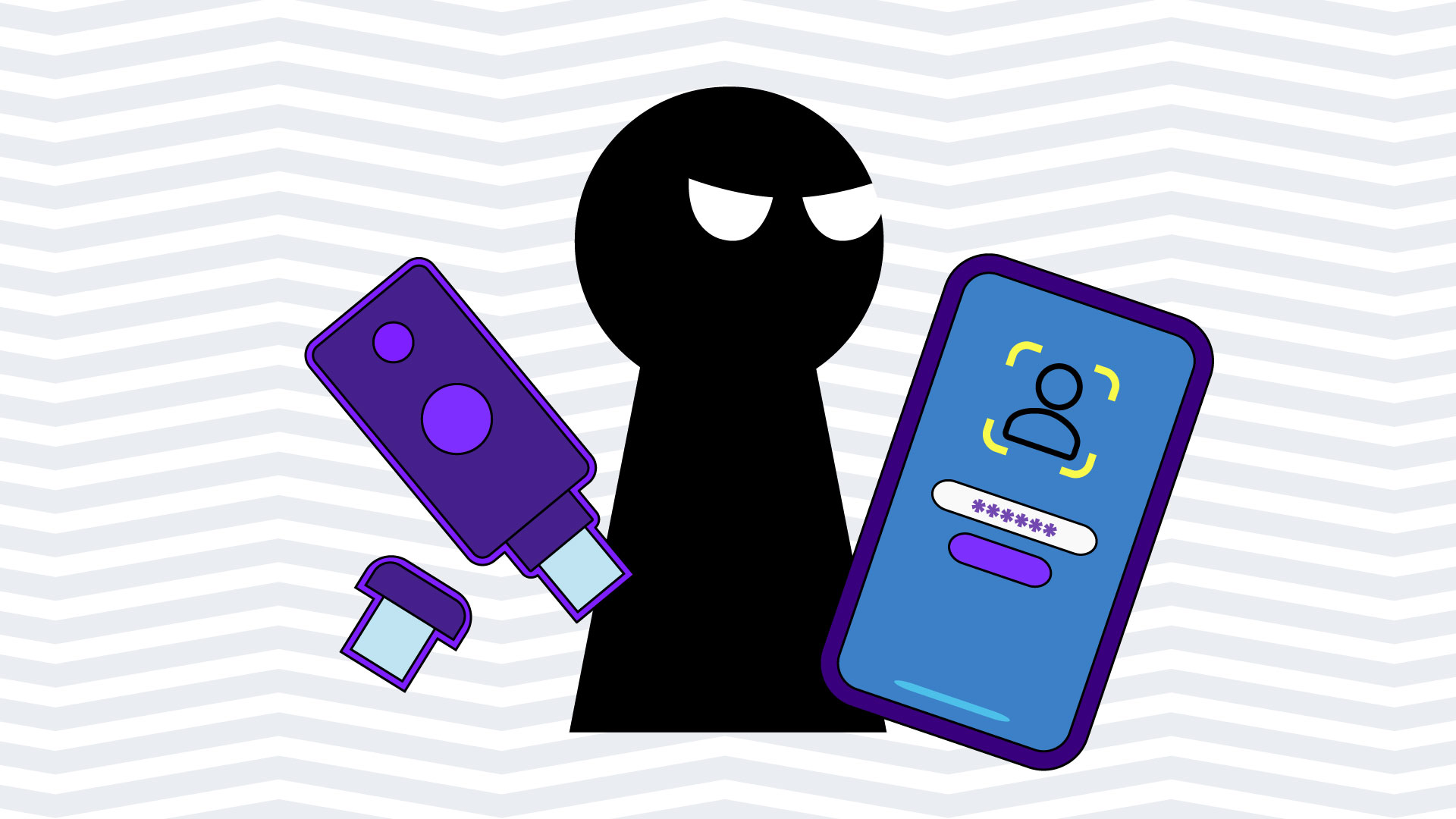


Your online accounts contain some of your most personal information, from private conversations to financial data. Protecting your Yahoo account doesn't require security expertise. By taking a few simple steps, you can significantly reduce your risk of being hacked. This guide covers three essential security measures: two-step verification, password managers, and SIM swapping protection.
Credential stuffing and SIM swapping are two common attacks. The strategies below protect you against both.
Security Tip #1: Turn on Two-Step Verification (2SV)
What is It?
Two-step verification (also called multi-factor authentication or MFA, and two-factor authentication or 2FA) requires two distinct factors to sign in instead of just a password. Think of it like needing both a key and a security code to open a safe. Even if someone steals your password, they still can't access your account without that second factor.
Before You Enable It
Make sure you have at least two recovery channels on file with Yahoo (phone numbers and/or email addresses). This makes it easier for Yahoo to help you restore access to your account.
Three Ways to Use It with Yahoo
- App Push Notification - A push notification is sent to any Yahoo app on your mobile device. Simply tap to approve.
- Passkey (Biometric Verification): Use your fingerprint or Face ID to sign in. Your biometric data never leaves your device.
- SMS (Phone Verification) - Yahoo sends you a text message with a verification code.
Security Tip #2: Use a Password Manager
What is It?
A password manager stores all of your credentials (usernames and passwords) in one safe, encrypted place called a "vault." It's a high-security digital filing cabinet for your login information.
Using a password manager is one of the best ways to protect yourself against credential-based attacks. Instead of remembering dozens of complex passwords (or reusing the same simple password everywhere), your password manager remembers them for you and automatically enters them into login pages.
Using any password manager is better than using none at all.
What Can Password Managers Do?
Modern password managers offer a variety of features, including:
- Storage for sensitive information such as insurance cards, PIN codes, and membership IDs
- Strong, secure, unique passwords for each website, system, or application
- Dark web monitoring to alert you if your passwords or login details appear in data breaches from other companies
- Secure password-sharing with family or colleagues without revealing them in plain text
- Auto-fill forms with addresses and credit card information you've stored
Password managers use bank-level encryption and don't store your master password, so they can't access it. Most require multiple factors (like the 2SV options discussed above) to verify your identity before granting access. Reputable password managers undergo regular third-party security audits to verify they follow security best practices.
Why Should You Use a Password Manager?
- Autofill credentials on legitimate sites only. The auto-fill feature only works on the actual website where you created your account, not on fraudulent websites designed to steal your password. This helps you avoid giving your login details to a fake phishing site.
- Create strong and unique passwords effortlessly. Password managers generate and save a complex, unique password for each login you own, so you avoid reusing passwords. They can even regularly change your passwords automatically, greatly reducing the likelihood of your accounts being hacked.
- Sync passwords across all your devices. Your passwords are auto-filled on all your devices, from phones to tablets to computers.
How to Sign Up
Yahoo has compiled a helpful guide with various sign-up options for popular password managers. Find detailed instructions at Yahoo's Password Manager Help Article.
Any password manager is better than none. Choose one that works for you and start protecting your accounts today.
Security Tip #3: Enable SIM Protection
What is SIM Swapping?
SIM swapping is a technique used by criminals to hijack your phone number and access your accounts, including your bank, email, and social media. It's a surprisingly effective attack that can happen to anyone.
How SIM Swapping Works
SIM swapping (also called phone porting) is the act of hijacking a cell phone number and adding it to a different SIM card, allowing criminals to impersonate you.
Scammers contact your mobile carrier pretending to be you. They might claim they've lost their phone or are switching to a new device. If they can convince the carrier's customer service representative (often by using personal information they've gathered from data breaches or social media), the carrier transfers your phone number to a SIM card controlled by the scammer.
Once they control your phone number, they can intercept one-time authentication codes your bank sends over text. They can then reset accounts that use your cell phone number for recovery, including email, social media, and bank accounts.
How to Identify If You've Been SIM Swapped
On Your Phone
- You suddenly can't send or receive text messages or make phone calls
- Your phone has completely lost service with no apparent explanation
- You receive a notification that someone transferred your phone number to a new device
On Your Accounts
- You notice strange activity on your social media accounts
- You can't access your bank accounts or social media using your usual login
- You notice unusual bank activity or transactions you didn't make
If you notice any of these warning signs, act immediately. Contact your mobile carrier to verify that your number hasn't been transferred, and check your important accounts for unauthorized access.
How to Prevent SIM Swapping
Most major mobile carriers now offer a feature called "phone number locking" or "SIM protection" that prevents unauthorized SIM swaps. This feature adds an extra layer of verification before your phone number can be transferred to a new SIM card.
Yahoo created a detailed help article with step-by-step instructions for enabling this protection with various phone carriers, including AT&T, Verizon, T-Mobile, and others. Enabling this feature takes just a few minutes but provides significant protection against this increasingly common attack.
Need Help? Yahoo Customer Care is Here
If you're having trouble accessing your account or need assistance implementing any of these security measures, contact Yahoo Customer Care. They can help you secure your account and regain access.
.jpg)

